
Mesh Wi-Fi 6 ATRIA 3000 UK paquete de 2)
Todas las preguntas
Mesh Wi-Fi 6 ATRIA 3000 UK paquete de 2)
¿Cómo debo configurar mi red « Mesh » para optimizar mi red Wi-Fi?
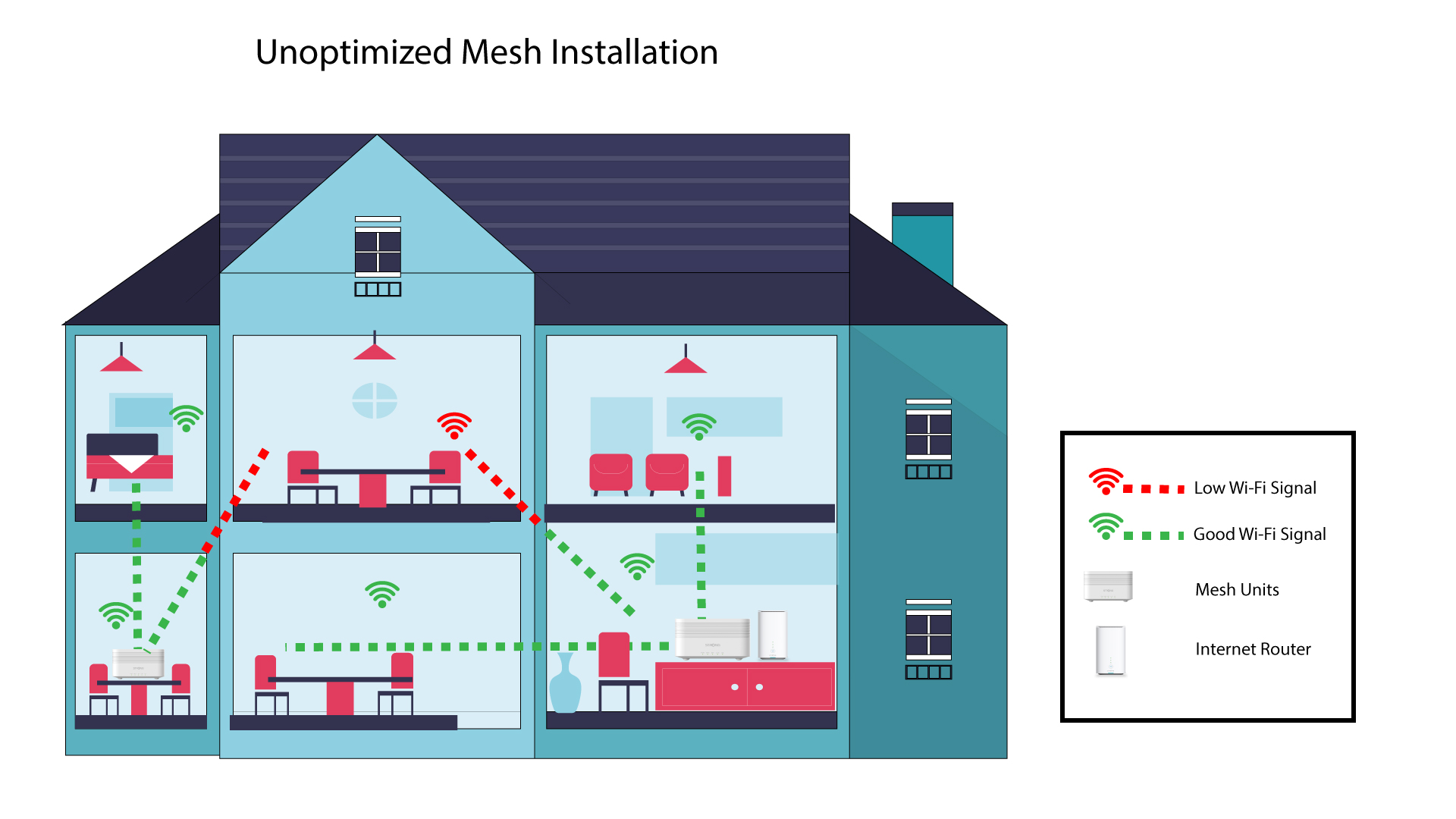
Para optimizar la cobertura, debes instalar el mesh en el lugar donde tengas problemas de cobertura, con el fin de cubrir la mayor superficie posible de tu vivienda. Asegúrate de que las unidades mesh no estén situadas en una habitación donde haya un muro de carga, ya que, cuanto más grueso sea el muro, más difícil será que la señal Wi-Fi lo atraviese.
1. Cobertura
El siguiente esquema muestra la cobertura Wi-Fi en el interior de una vivienda en la que los nodos « mesh » no están situados en la zona adecuada de la vivienda para ofrecer una cobertura adecuada.
2. Disposición
El siguiente esquema muestra la cobertura Wi-Fi en el interior de una vivienda en la que los nodos « mesh » están situados en la zona derecha de la misma para garantizar una cobertura adecuada.
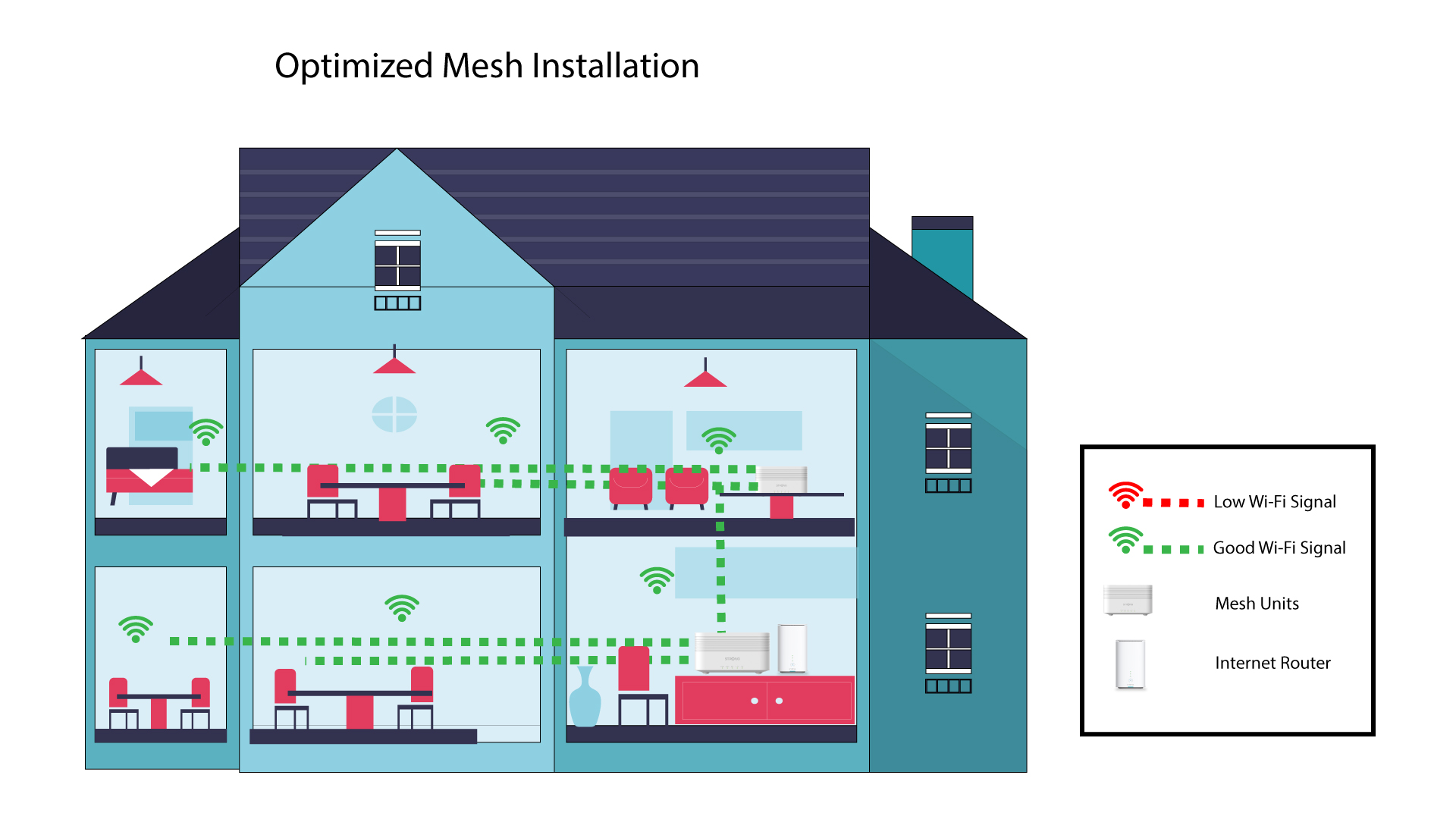
Si tienes una casa grande, puedes instalar varias unidades mesh para cubrir todas las habitaciones.
Puedes comprobar en la aplicación si la cobertura que ofrecen los nodos mesh de tu hogar es adecuada.
1. Cobertura de la aplicación Atria
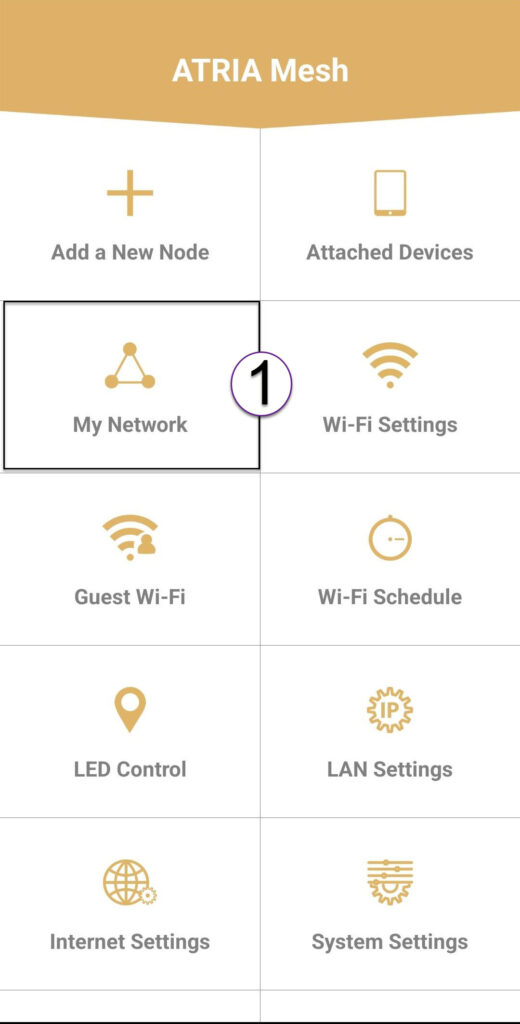
Para ello, conéctate a la red Wi-Fi de tu Mesh y abre la aplicación en tu dispositivo.
A continuación, haz clic en «Mis redes».
2 Información sobre la unidad «Mesh »
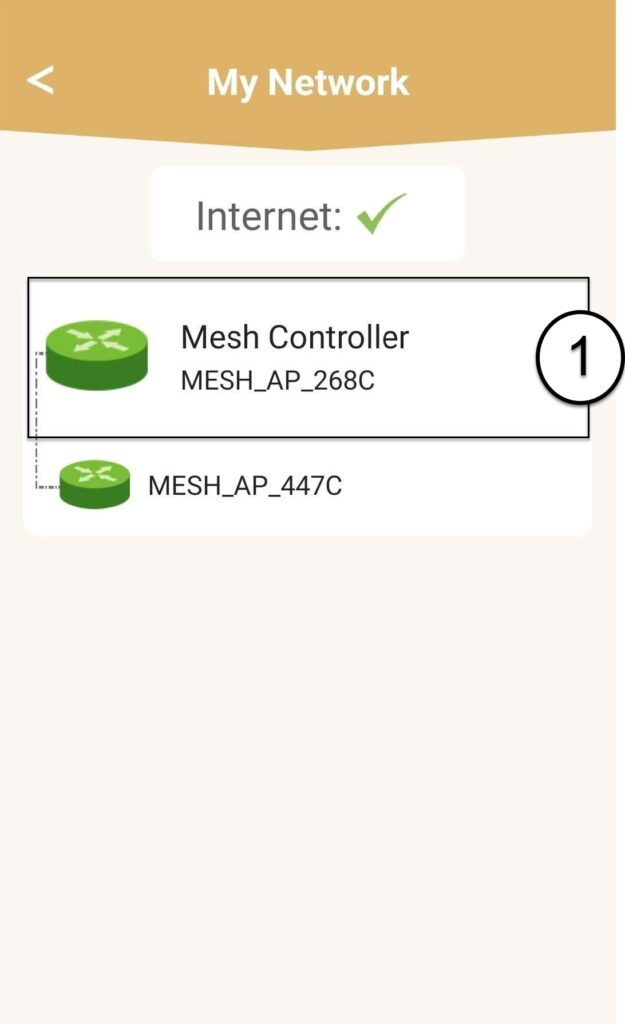
Haz clic en el nombre de la unidad « mesh » para acceder a su información.
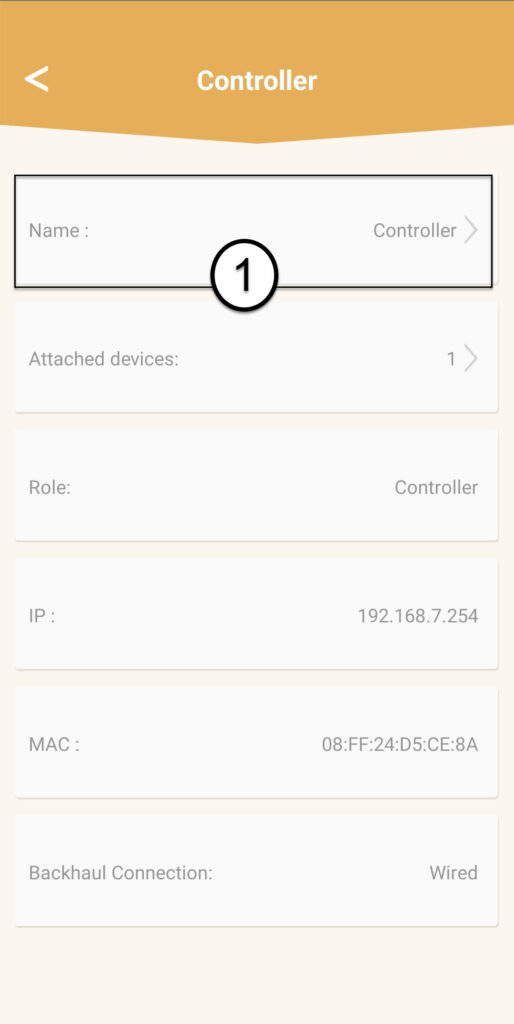
3. Cambiarel nombre de las unidades
Haz clic en el campo del nombre e introduce un nuevo nombre:
• El controlador « mesh » debe tener el siguiente nombre: MeshAX3000-Main-Nombredelahabitación
• Los agentes « mesh » deben tener el siguiente nombre: MeshAX3000-Nombredelahabitación

Advertencia: Si la unidad mesh aparece en gris, significa que no ofrece suficiente cobertura y que debes ajustar su ubicación para optimizar la red mesh .